



Having a connected business goes beyond creating a Facebook page. It’s essential to understand your customers’ habits and consumption to interact with them correctly. This involves embracing messaging technologies like Telegram or WhatsApp.
Today, we’ll focus on the most popular one, WhatsApp. Although it’s not my favorite, you’ve likely guessed that it’s the most widely used messaging app in the world, which means it’s always in the palm of your potential customers’ hands.
So, today I want to teach you how to take advantage of WhatsApp integration on your website or social media. Before we begin, and although it’s not strictly necessary, I highly recommend downloading WhatsApp Business if you have a business, as it’s free and has additional features that are very interesting for businesses.
The Join.chat plugin
First, let’s talk about your website. If you use WordPress, whether it’s a blog, business page, or online store developed with WooCommerce, you can use a Spanish-developed plugin called Join.Chat. This plugin is free and consumes virtually no server resources, although I acknowledge that its add-ons are excellent if you want to take it to the next level. However, for what we’re doing today, you won’t need to spend any money.
Installing it is easy; you just go to the WordPress repository and add it. Done. The configuration for the free version is very simple; if you want, I can share my settings so you can see the fields you need to select. There are some interesting combinations, but these are the ones I get the most out of.
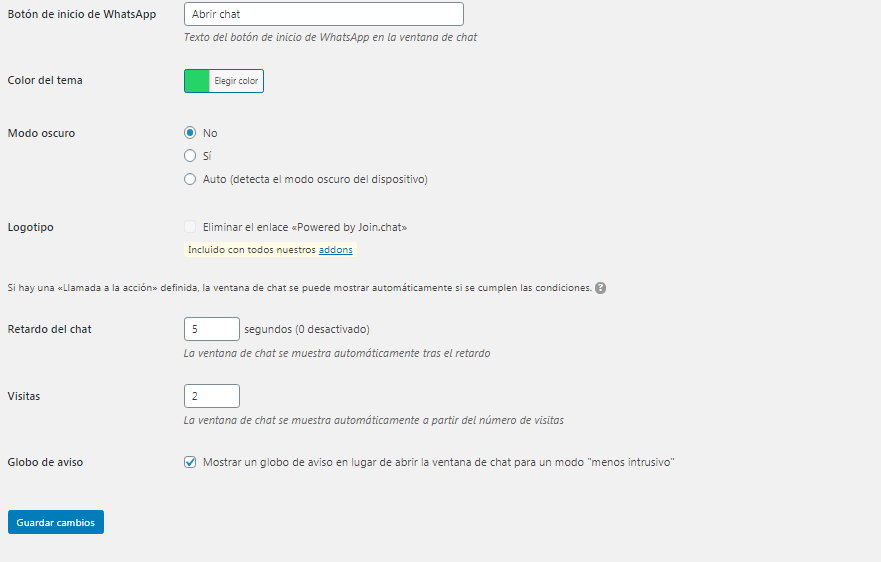
Join.Chat plugin configuration for WhatsApp.
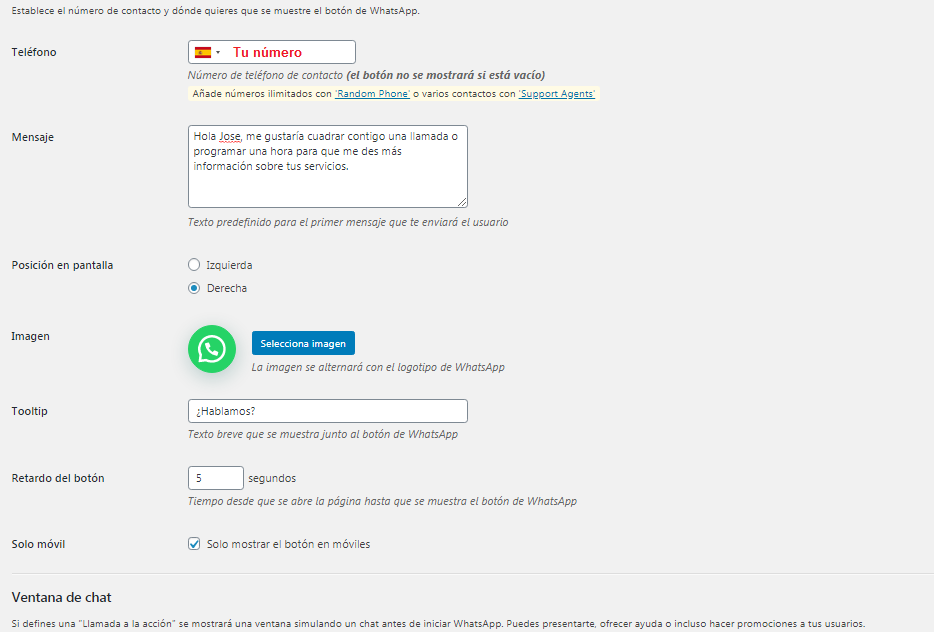
Join.Chat plugin configuration for WhatsApp.
WhatsApp with links
If you don’t have a website, only manage social media, or use a combination of both, you should know that there are no plugins or magic solutions here. Everything relies on manual configurations, but don’t worry, it’s easy.
The first thing you need to know is that WhatsApp’s API allows you to configure links with a predefined message, so when a user clicks on the link, they can send an automatic message to the selected number. It works similarly to the Join plugin, but you need to configure the links manually. Fortunately, the Join.Chat website allows you to generate them automatically with their WhatsApp message generator.
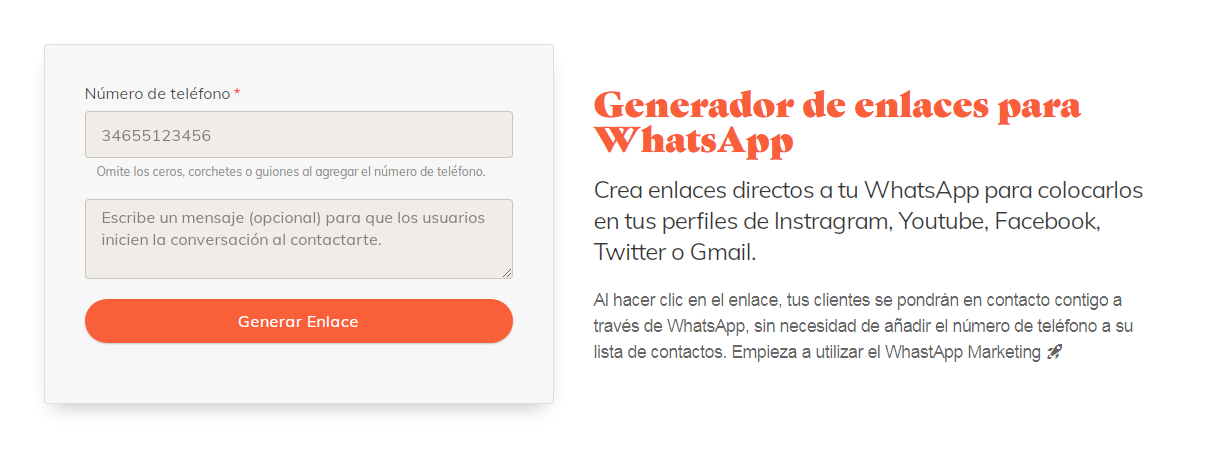
WhatsApp link generator.
Create as many links as you think you need and use them in your Facebook, Twitter, LinkedIn, and similar posts. You can also use them on various pages of your website in a segmented way with different messages to see where you’re getting more contacts.
My advice is to disguise the link with a shortener like Bitly and also make the link “NoFollow” if you’re going to put it on your website, so Google doesn’t index your phone number.
To finish, if you haven’t already, configure WhatsApp on your PC for greater convenience in maintaining contact with your customers.