


At this stage, it’s more than likely that you know what WPO means, but if not, I’ll tell you that it refers to Web Performance Optimization. In other words, optimizing the performance of your website to load better and faster. In fact, with the importance that Google is giving to this, it’s vital that your website loads as quickly as possible.
The reasons for investing in good web performance are varied, and it’s generally agreed that it’s for the user experience. However, having a website that loads as quickly as possible is also beneficial for your site in terms of search engines. Since the faster your site loads, the more pages Google’s robot will be able to crawl, it’s logical to be concerned about this area. So, stay tuned, as this interests you.
Plugins in WordPress
If we have to name a king in the field of CMS, it would undoubtedly be WordPress. However, despite its flexibility, it has a problem: you need a plugin to access some functions that are basic. The best example I can give you is the contact form. In the WordPress repository, you can find a good number of plugins to perform this function, but there’s nothing native.
The problem with plugins arises when they start consuming server resources. Each one loads a library and its own scripts, so even when they’re not necessary on a page, they’re still loaded. If we use the example of the Contact Form 7 plugin, we’ll see that it’s loaded even when the visitor is browsing the home page or entries. Of course, this doesn’t make sense because if there are no contact forms in those areas, why load the entire library? Wouldn’t it be more sensible to load it only on the “contact” page?
Solve the problem with Load Filter
Okay, so we’re complaining about plugins, and I’m going to recommend another one… But I have reasons for doing so. In fact, it’s a free plugin that I frequently use on some of my clients’ websites when they require multiple plugins.
It’s the Load Filter plugin, and what it does is precisely filter the areas where you want a plugin to load. Using the contact form example, we can tell the plugin to load only when the visitor is on the page we’ve enabled for that purpose.
Additionally, we can also tell some plugins to load only in the admin panel. I illustrate this with a plugin I use on one of my sites, Add Quick Tag. It’s really only useful for creating quick action buttons within the entries panel, and it doesn’t make sense for the plugin to load on the visitor’s side, but it does. So, I can tell it to load only on the admin page, and that’s it.
This also applies to BBPress; if you don’t want the entire plugin to load in some areas, you can adjust the URL structure and basic Load Filter options.
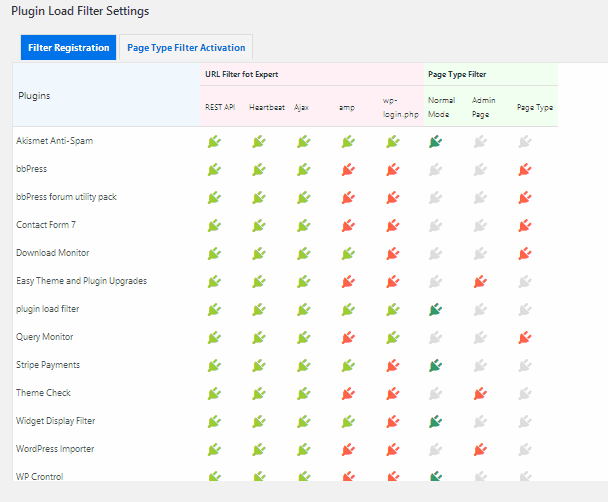
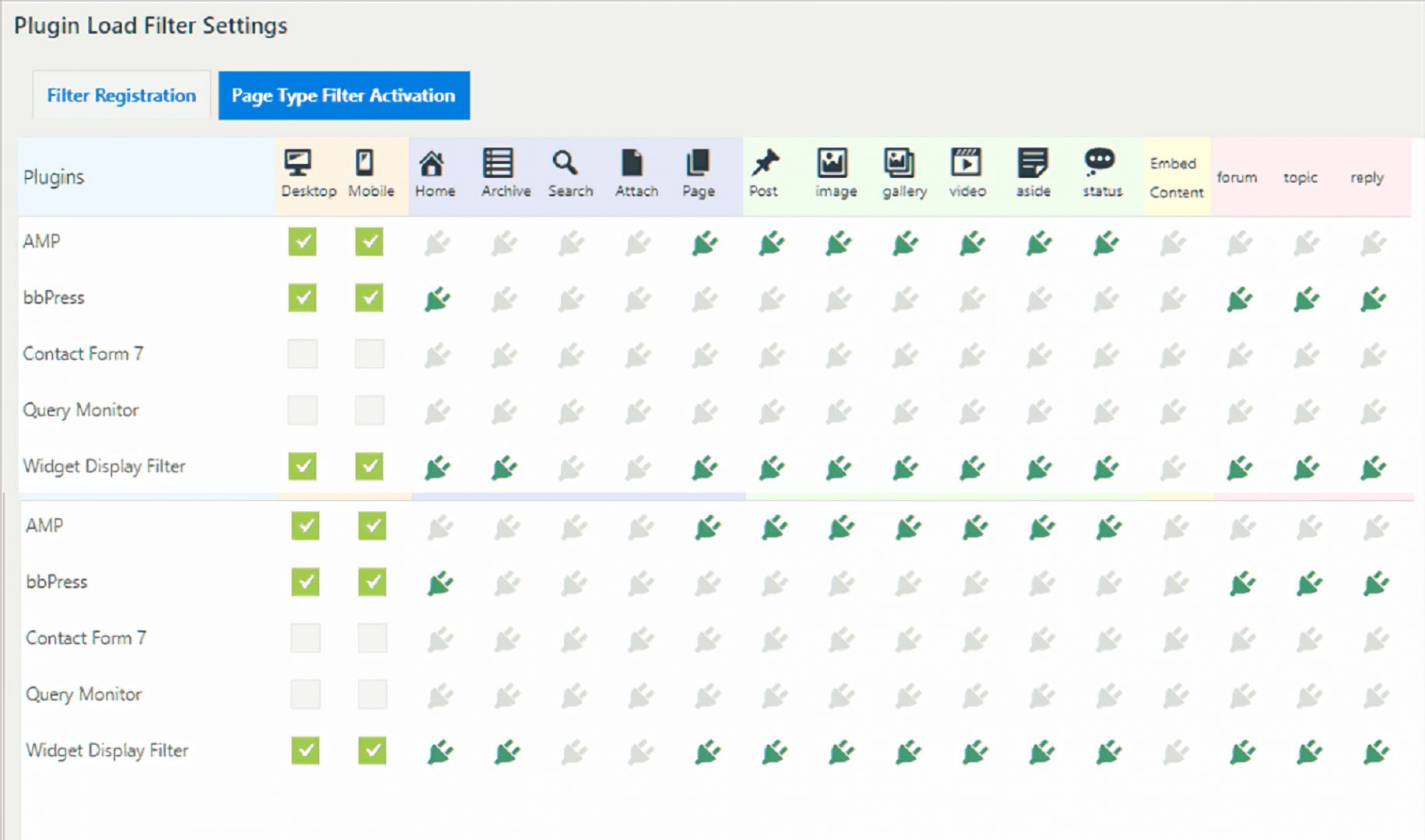
Load Filter plugin configuration window. The Page Type option is very good as it allows you to choose with more precision how the plugin should behave. For example, if it should load on the desktop version and not on the mobile version. Or if it should load only if the visitor is on a custom post type or one of WordPress’ default ones.
Finally, if you use the AMP version, you can also configure the URL parameter so that incompatible plugins with AMP technology don’t load on this version. So, if you rely on multiple plugins to function, my advice is to use this and run a test. You’ll be surprised at what you can gain if you configure it correctly.