


404 errors have become a real headache for webmasters in recent years. With sites that are increasingly large and dynamic, it’s normal for this type of error to increase and go unchecked. But as always, a bit of context for those new to this post, what is a 404 error?
I illustrate this with a quick example. You enter Google searching for information on a comic hero you’ve just seen, and when you click on the first result you see, your internet browser returns an error stating that the page is not available. In broad terms and without getting into technical details, it’s a status code that indicates that the link is broken or no longer exists. And of course, this frustrates the user and Google knows it well.
Contenidos
Consequences of 404 errors
At this point, you can have two feelings, the collective hysteria that Google will penalize you, or the feeling of overlooking the failure since “a couple of them won’t make a difference”. Both positions are erroneous, at least halfway. Search engines take this type of error into account and that’s why they quantify 404s in their panels, you can see them in detail in Search Console.
Having a high percentage of 404 errors sends a signal to Google that the page is being neglected. And therefore, it will end up lowering its positions in the SERP. It also negatively affects the PageRank of your site.
Take the status codes of your website seriously. They are the quality indicator for Google.
Visitors become frustrated, abandon the site, and it’s likely they won’t visit it again if it appears in one of their searches.
How to detect if I have 404 errors?
You can use tools like Screaming Frog, its crawler detects status codes and allows you to filter them by URL. You can use that method, which is what any SEO with knowledge on the subject would use, or you can go for a free but more tedious option, finding errors through Google Search Console. I’ll focus on the Mountain View tool which is free and accessible to most.
- Open Search Console
- Click on Coverage.
- You should see something like this that I leave in the screenshot.
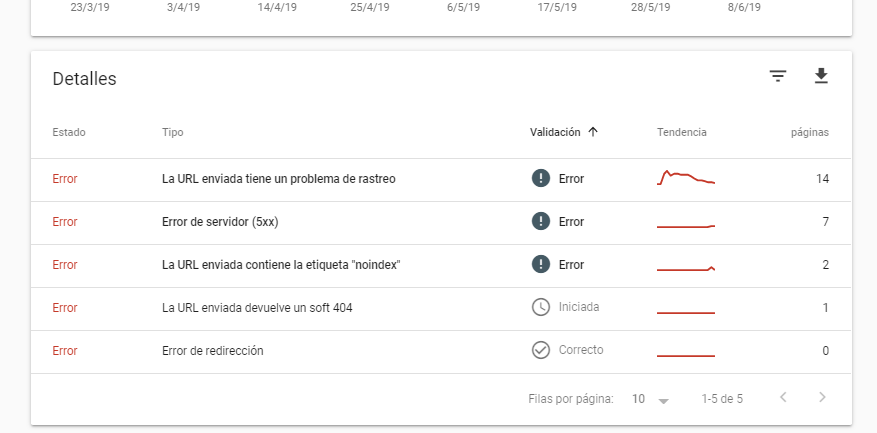
It’s worth noting that here you will only be able to see the 404 errors detected by Google, which does not mean that your website does not have more problems of this type and URLs that have not yet been crawled. However, it can serve as a guide.
Solving errors on my website
Now that we’ve located a few addresses, we can start working on how to solve the errors. I want to be clear and crystal clear about this, not all projects require the same solution, but I’m going to provide one that can work in most cases.
The ideal is that once you have all the URLs that are failing, or at least a good number of them (by default Search Console works in blocks of 1000), you take them to an Excel to decide where they should point. And this is important because redirecting everything to the homepage is usually a common mistake, especially if these URLs had a low PageRank and were indexed in Google.
Therefore, you have to decide calmly what to do with them. The usual thing would be for them to point to the most recent entries related to the same content, or at least the one that is most similar. If they are dynamic URLs or point to areas of the website that shouldn’t, the ideal is to mark them as NoIndex and wait for Google to delete them from its index if they have indexed them, then put them in your robots.txt.
Note: You can make redirects with a dedicated plugin, from the server with htaccess or with the additional functionality of Rank Math.
Can I do it with a plugin?
Yes and no, I would never recommend relying on a plugin for something so delicate. But there is a solution for WordPress that will serve you to gain time while fixing the problem. This plugin is called WP 404 Auto Redirect to Similar Post and what it does is search among titles, tags, and categories so that when the user requests a damaged URL or non-existent one, they are redirected to a post with similar content. Let’s see what it does:
- Automatically detects any 404.
- Automatically searches for a similar publication based on multiple factors: Title, PostType, Taxonomy.
- If nothing similar is found, you can choose the fallback behavior. For example, redirect to the homepage, redirect to a custom URL, or display the default 404 page.
- Choose the HTTP redirect header status, headers 301 and 302.
- You can exclude post types from possible redirects.
- You can exclude taxonomies from possible redirects.
- You can exclude publications based on a custom meta.
- You can display the debug console instead of being redirected (Admin).
- Preview of the possible redirect from the administration panel.
This plugin is great, but it shouldn’t be the solution to your problems. While it’s true that you improve the user experience temporarily, you’re not benefiting your site’s SEO since, for example, you could redirect the request to an entry that you’re not interested in boosting and you would be giving unnecessary PageRank. However, for small websites or to gain time while correcting errors calmly, it’s perfect.